

The twisting tower is the "Hello World" of parametric design. If you know Dynamo or Grasshopper, you've probably built one. You set up a few parameters, watch a stack of floors spiral into something that looks like it belongs in a futuristic city, and feel briefly like a genius.
I've built mine three times over the years. Not because the concept kept changing, but because every rebuild fixed something and broke something else. This post is about those three versions, and the thing I figured out somewhere around the third one. It wasn't that I was looking for a better tower; it was that I wanted a better way to play with the tower. The feature that made that possible was already in version one, and it took me two rebuilds to find my way back to it.
Why a tower
If you've never built one, here's the appeal. A twisting tower is driven by a handful of inputs: number of floors, floor height, footprint shape, and total rotation from bottom to top. Change the rotation from 1 degree to 5 degrees, and you get a completely different building. Bump the floor count, and the whole thing stretches. Four or five sliders, and the variety of towers you can generate is enormous.
That's what makes it a good test bed. The geometry is simple enough that you're not fighting it, and the payoff is immediate enough that you can feel whether a tool is helping you or getting in your way. So every time I tried a new approach to parametric modeling, the tower came back out.
Version one: Dynamo
The first version was a Dynamo graph. Geometry nodes creating a rectangle, which was translated and rotated. Floors created and walls generated. It worked well, and it had one feature I completely took for granted at the time.
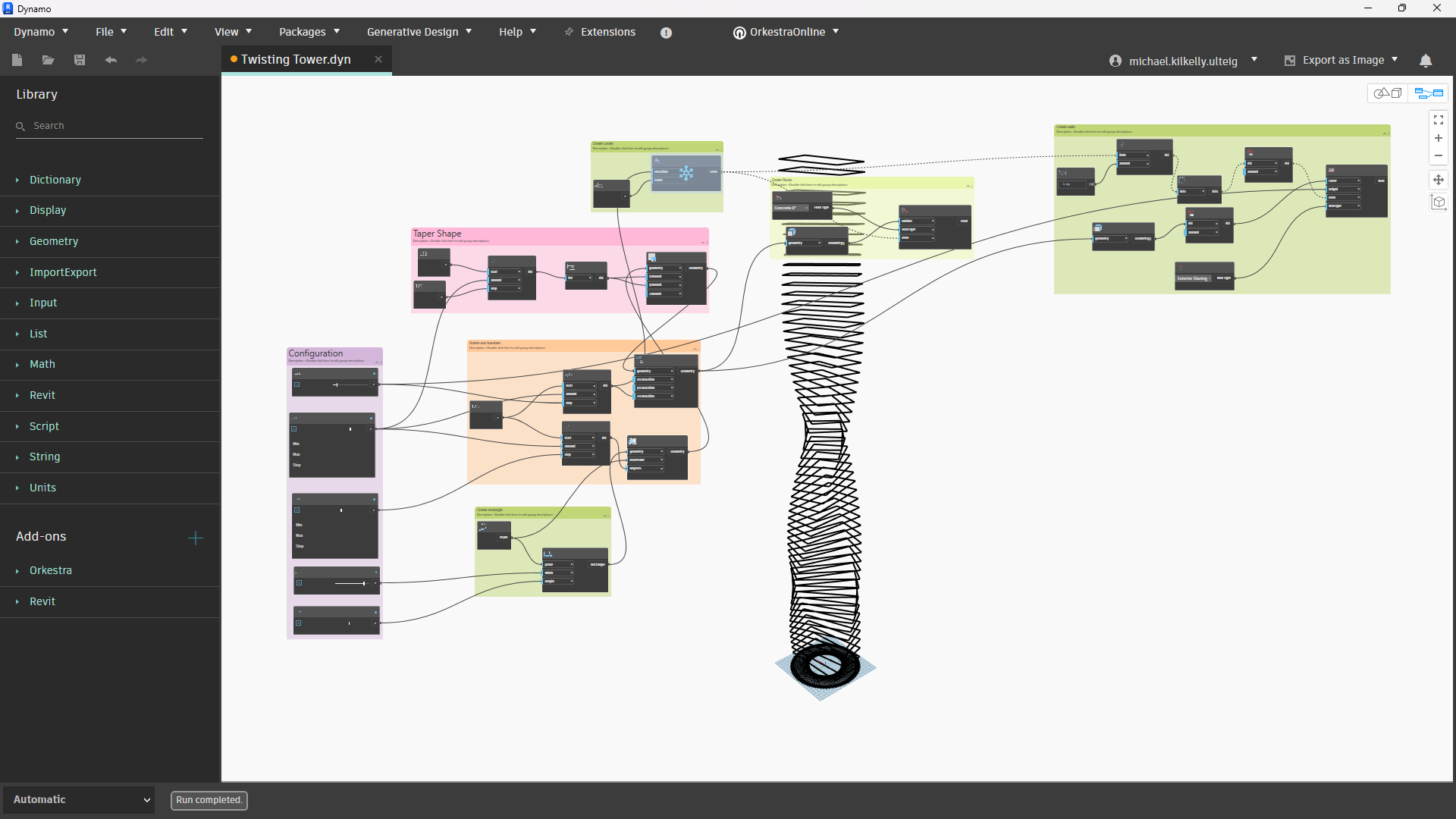
The best thing was that you could see the tower update live. Drag the rotation slider and the geometry in the Dynamo preview window twisted right along with it. Add five floors, and the tower grew. I wasn't thinking of that as a feature. It was just how Dynamo worked. Of course, you could see the geometry. Where else would it be?
Dynamo has real downsides, and they’re well-documented. The graphs can get complicated. A model that made sense in March is a plate of spaghetti by June. Every Revit version update is a small act of faith that your script still opens. And you can’t exactly hand a colleague who’s never opened a graph in Dynamo and expect them to use it successfully. But for sitting alone and exploring forms, that live preview did something I didn’t give it credit for. It closed the gap between changing a number and seeing the result in real-time.
Version two: Launchpad
The second version was a Launchpad script. This was supposed to be the upgrade. Instead of a node graph, I built a real UI: clean input fields for floor count, height, footprint, and rotation, with a button to generate the tower in Revit. Better yet, you could run it from a button on the Revit ribbon. It was something I could actually hand to another person without a twenty-minute tutorial on what a node is.
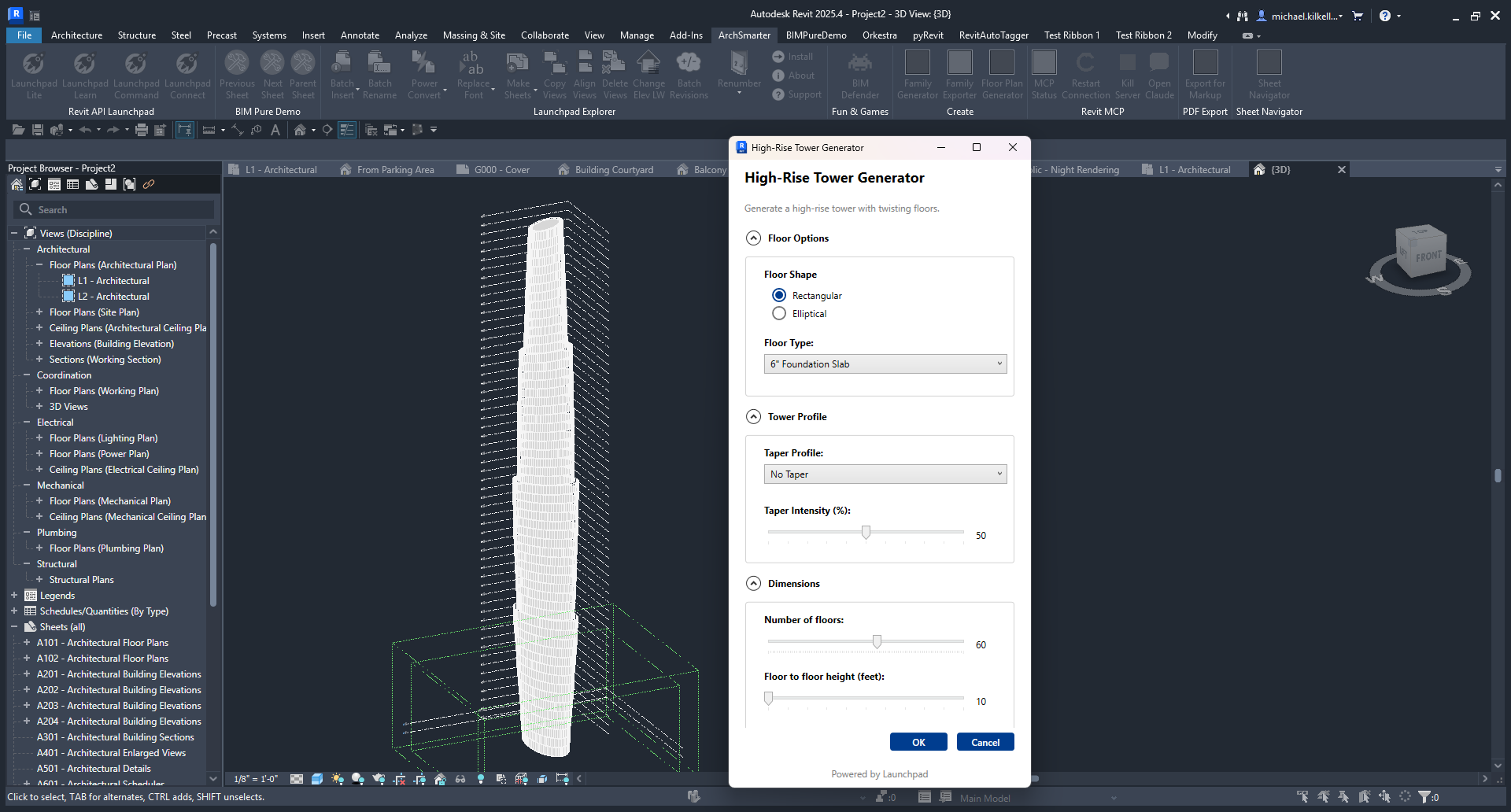
The UI was nice. I was proud of it. And it was a step backward for design exploration.
Here's the problem. You couldn't see the tower until you generated it. So the workflow became this: type in some numbers, hit generate, look at the result in Revit, decide you didn't like the rotation, go back to the UI, change one number, generate again. Every iteration meant building the whole thing and then evaluating it after the fact. The tight feedback loop I had in Dynamo, where the geometry moved as I made changes, was gone.
I'd convinced myself that the clean UI was the winner, but it wasn't. A UI on a tool that makes you commit before you can see anything is just a nicer way to fly blind. Sure, the packaging got better, but the actual design experience got worse.
Version three: the HTML tool
The third version is a single HTML file that runs in a browser. No install, no Revit version anxiety, nothing to set up. You open the page, and there's the tower, rendered live, twisting as you move the sliders. Change the rotation and the form updates in real time. Adjust the footprint and watch it ripple up the tower. Dynamo's live feedback, Launchpad's clean interface, all in one file that opens on any machine.
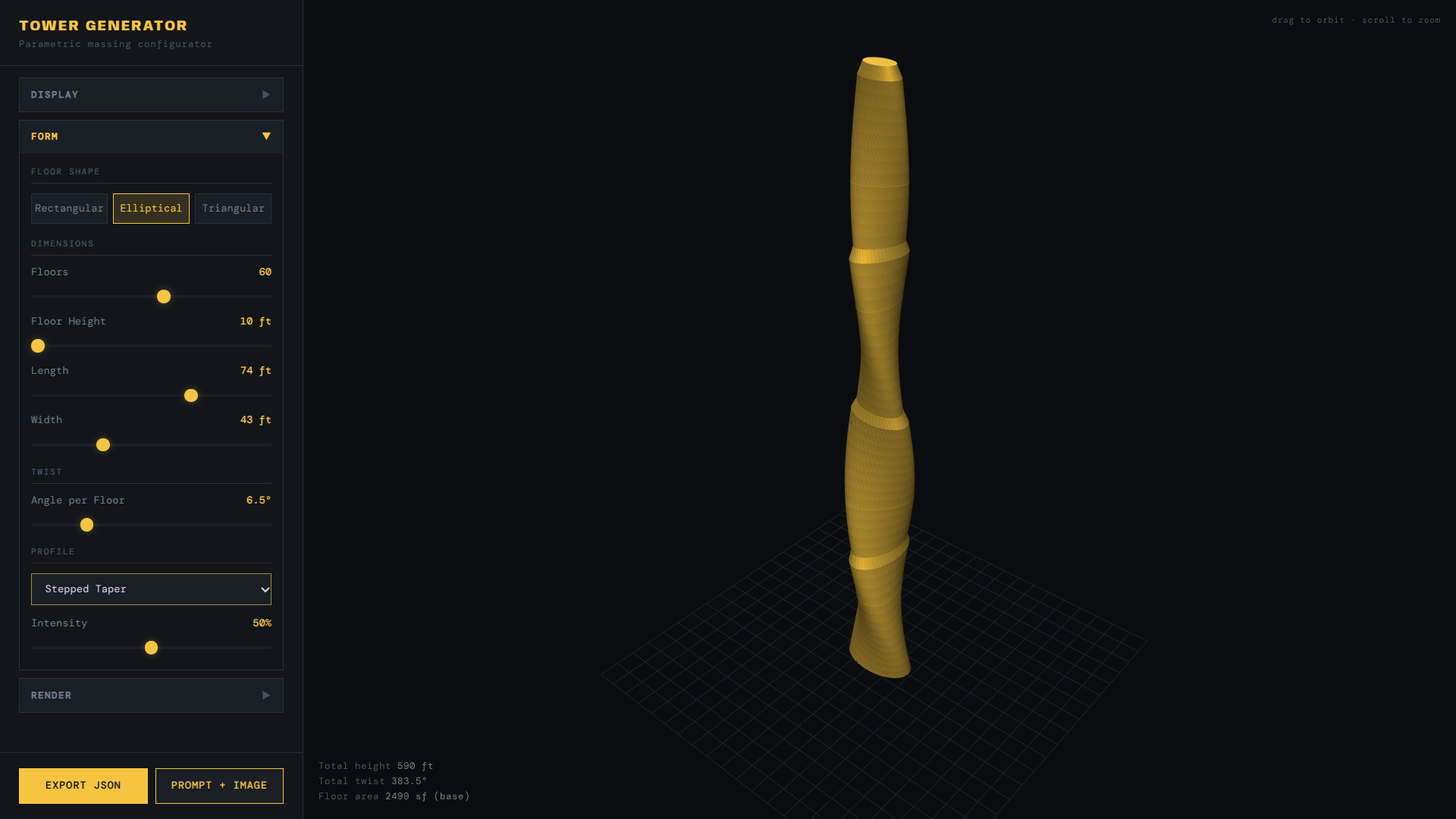
The first time I dragged that rotation slider and watched the tower respond, I knew this was the version. I was back to designing with my eyes instead of my imagination.
When you configure a tower you like, you can export it to Revit. A Launchpad script translates the tower parameters to Revit elements. The browser is where you explore; Revit is where you document. That split turned out to matter as much as the live preview. Exploration is cheap and fast when it doesn't happen inside your production tool.
My HTML version also has additional benefits not found in Dynamo or Launchpad. The HTML generates a prompt you can feed to Gemini to render an image of the tower. Change the materials, lighting, weather, you name it. The tool generates a new prompt and exports a screenshot. Open Gemini, upload the screenshot, and paste the prompt. Viola! A fully rendered view in seconds.
That feature proved useful enough that I pulled it out into a standalone tool that works with any Revit model. More on that in the next post.
The part that actually matters
Strip away the tower, and here’s what’s useful from this exercise. What made the third version work wasn’t the browser, or the sliders, or the export button. It was the immediacy between changing something and seeing the result instantaneously. That’s what makes a good design exploration tool.
Dynamo had it by accident. It was baked into the software, and I didn’t notice until I built something that lacked it. Launchpad traded it away for a nicer interface, and I learned that the trade wasn’t worth it. The HTML version got it back, on purpose this time, and kept the clean interface too.
So if you’re building tools for yourself, that’s what you should protect. Not the UI, although a good one helps, but the speed of the feedback. When you’re exploring a design, seeing the result of a change immediately beats almost everything else. The best tool gives you both, but if you have to pick, prioritize the feedback loop.
I had to build the same tower three times to learn that.
Want to try the HTML tower generator yourself?
It’s free to download below. Open it in any browser and start twisting.
Click here to download the tower generator HTML.
Want to build your own? A single HTML file is the most underrated format for design tools right now. No installs, no licenses, no IT tickets. If there's a design problem you keep poking at, a slider-driven page that answers your questions instantly is more buildable than you think.
In fact, I'm putting together a free workshop on exactly this: building your own interactive HTML design tools with Claude and Launchpad. No date yet, but it's coming soon. Sign up for my newsletter below to get notified of this and other events.
Get the Thursday Top 5
My weekly email with five interesting and useful links on BIM, design, and technology, plus a few laughs along the way. I send it every Thursday. Join the over 8,000 AEC professionals who already get it.
