

We all know Revit isn’t the best design tool. It’s great for documentation and coordination, but when you need to iterate quickly, test several options, and compare layouts before anything gets modeled in detail? Revit just slows you down.
I’ve been experimenting with a workflow that treats Revit as a repository for design decisions rather than the tool where those decisions get made. The AI does the design thinking. A lightweight viewer handles the iteration. And Revit receives the result.
To test this, I picked a fairly straightforward but often tedious task: parking lot layouts.
The Pipeline
The workflow has three stages, and each uses a different tool for what it does best.
Stage 1: Extract the boundary from Revit. I wrote a Launchpad script that extracts the boundary of a filled region and saves it as a JSON file. The file is simple. It’s just a set of X, Y coordinates describing the shape of the lot. Four vertices, a couple of dimensions, that’s it. Here's a sample of the boundary JSON:
{ "boundary": [ [419.4845, -204.1617], [157.3678, -204.1617], [157.3678, 110.931], [346.7396, 110.931] ]}
Stage 2: Generate a layout with Claude. I built a custom skill in Claude that takes a parking boundary JSON as input and returns a complete parking configuration. The skill has a set of rules baked in: stall dimensions, aisle widths, block types (single-loaded, double-loaded), and orientation constraints. I feed it the boundary, answer a few questions (stall angle, edge constraints, ADA requirements), and it produces a layout as another JSON file that looks like this:
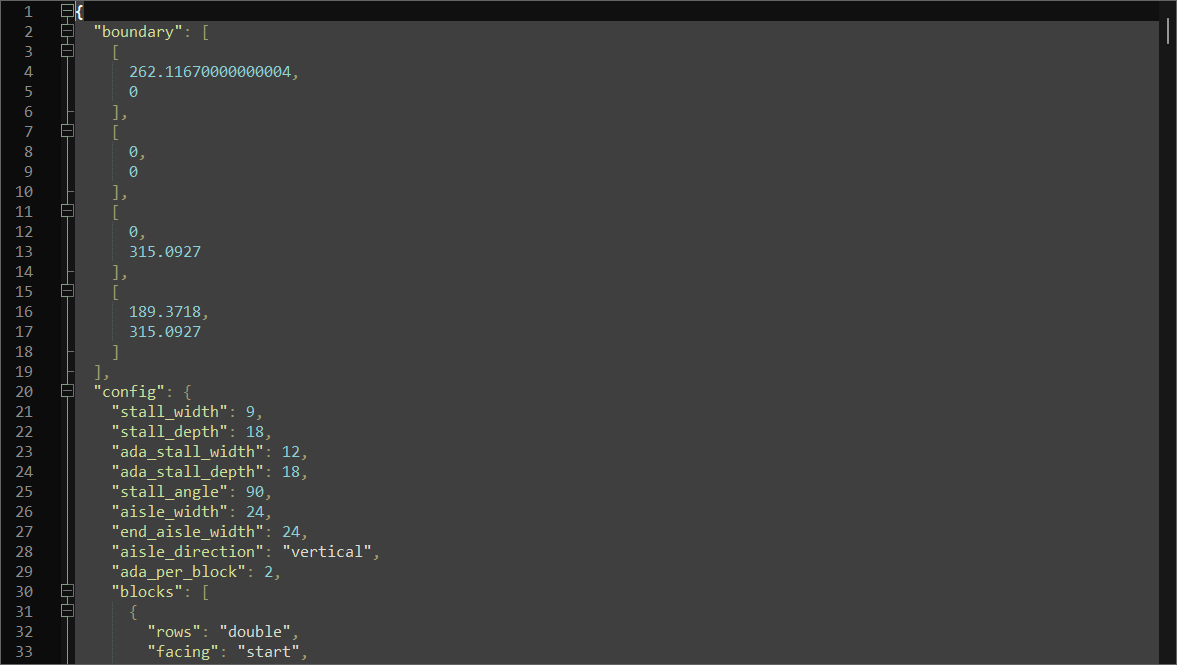
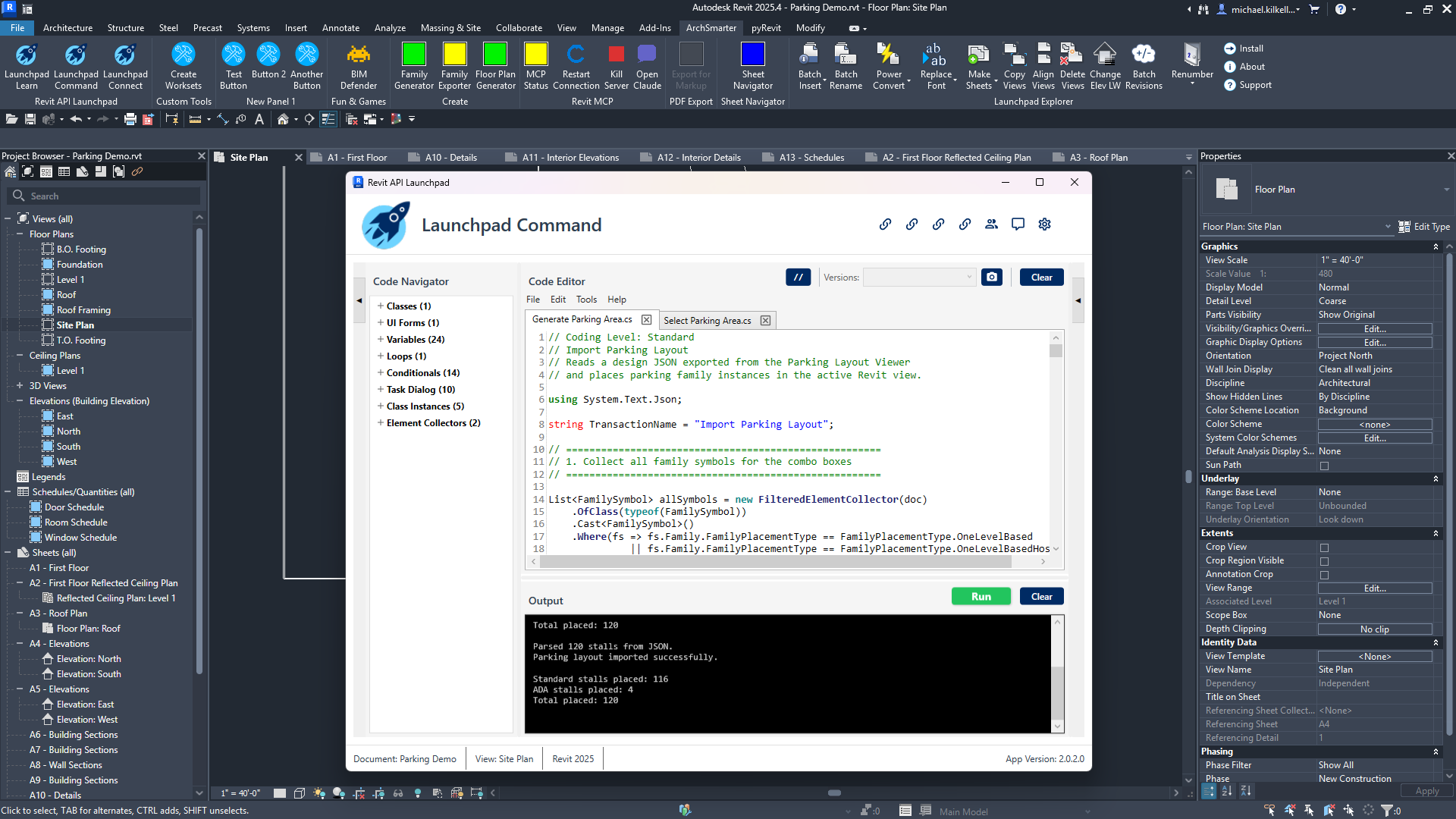
Stage 3: Review in a custom viewer, then import into Revit. Before anything goes back into the model, I open the layout in an HTML viewer I built (also with Claude’s help). The viewer lets me visually see the layout, add or remove stalls, adjust drive aisles, and toggle between single- and double-loaded rows. When the layout looks right, I export the final JSON and run a second Launchpad script that places parking families in Revit at the correct locations and orientations.
What Claude Actually Produced
I asked Claude for a 90-degree layout, no ADA stalls (I would add these manually), and to maximize stall count.
It ran its calculations, made some assumptions, caught a few of its own errors, adjusted accordingly, and produced a config file with 160 stalls. For comparison, my manual layout in the viewer totaled 134 stalls.
But here’s where frankness matters: Claude’s layout had problems. It placed a double-loaded corridor along the back edge that clearly wouldn’t work given the site geometry. Some of the drive aisle connections were missing. The 270 stall count initially quoted was, as it admitted, “a ceiling, not a guarantee.”
After loading Claude’s output into the viewer and cleaning it up (removing the bad back row, adding a center drive aisle), the count dropped to 120. My manual version, after similar cleanup, sat at 134.
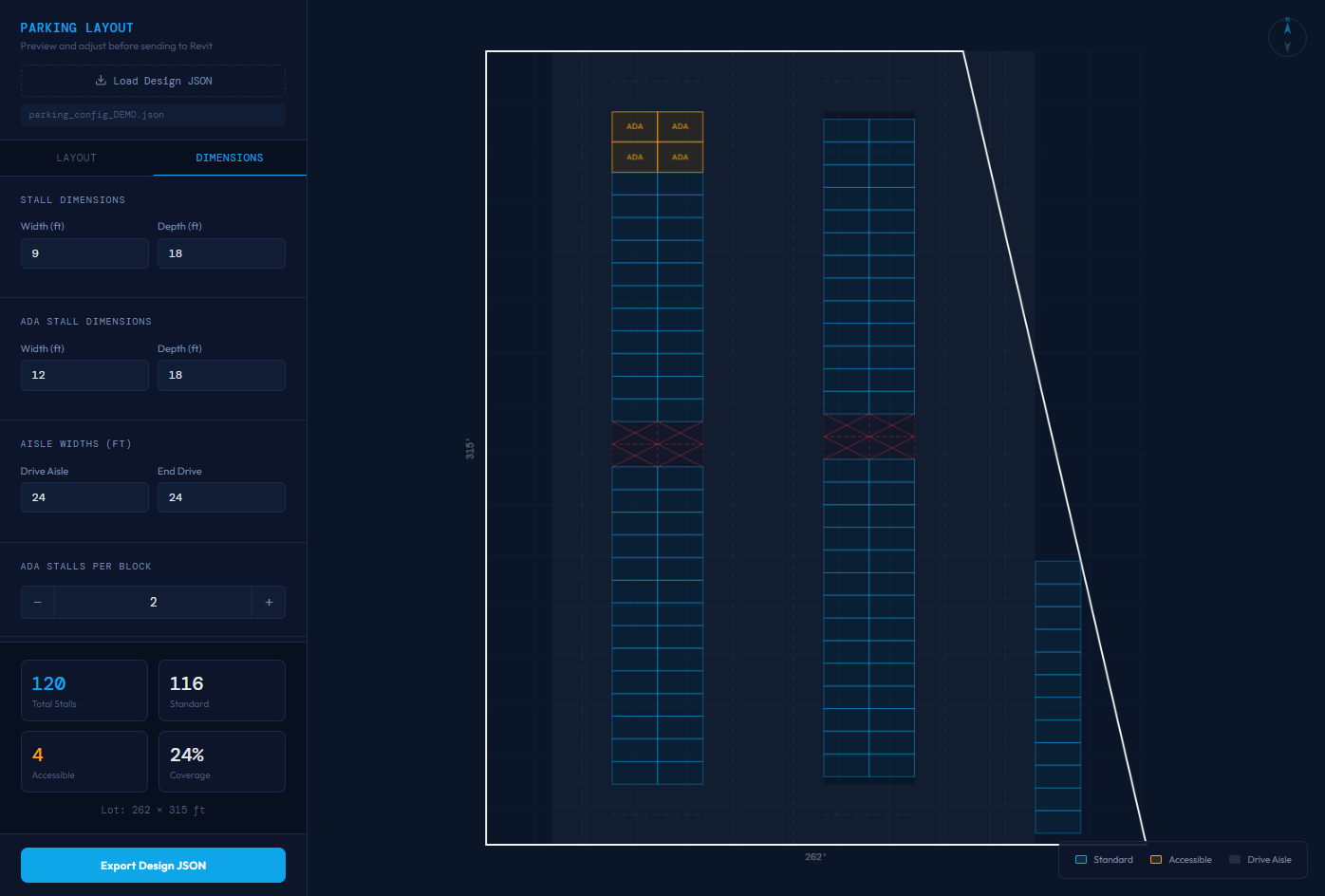
So Claude didn’t beat me on this one. But the interesting part isn’t the stall count. It’s the speed. Claude produced a starting layout in a couple of minutes. I spent longer than that fiddling with rows in the viewer. Having a fast first draft to react to is a different kind of useful than having a perfect answer.
Why the Viewer Matters
You might wonder why I bothered building an intermediate viewer instead of just sending Claude’s output straight into Revit.
First, iteration speed. Adjusting a parking layout in the viewer takes seconds, while making those changes in Revit takes much longer, even with good families and scripts. The viewer is purpose-built for speed and focus in a way that Revit never will be.
Second, judgment. Claude can generate a layout based on rules, but it can’t tell whether a drive aisle actually connects to anything or whether a row of stalls along an angled boundary makes practical sense. The viewer is where I catch those problems and apply the kind of human judgment that an AI misses, before anything hits the model.
I spent maybe two hours building the viewer, going back and forth with Claude on the layout logic and rendering. It’s not a production tool. But it’s surprisingly functional for something that started as an experiment.
The Bigger Idea
This parking layout pipeline is one example of a pattern I think has real legs: extract structured data from Revit, hand the design problem to an AI, iterate in a lightweight tool, and push the result back into the model.
Parking lots are a good test case because the design rules are relatively constrained and the output is repetitive geometry. But the pattern applies anywhere that Revit is overkill as a thinking tool while still being essential as a documentation tool.
This idea can apply to furniture layouts, MEP equipment, panel schedules, or massing studies. Anywhere you want to test options quickly outside of Revit while still relying on it for coordination and documentation. The LLM handles logic and constraints; Revit remains the documentation workhorse.
The tools to make this work aren’t exotic. A Launchpad script to export data. A Claude skill to encode your design rules. A simple web viewer for iteration. Another script to import results. Each piece is buildable in hours, not weeks.
What I’d Do Differently
If I were to invest more time in this particular workflow, I’d give Claude better examples of what a good parking layout looks like. Right now, the skill has rules but no reference designs. Showing it a few well-laid-out lots would likely improve the initial output.
I’d also tighten the feedback loop between the viewer and Claude. Right now, the viewer is a manual adjustment tool. It would be interesting to send an edited layout back to Claude and ask it to optimize further based on my changes. That kind of back and forth, human judgment plus AI computation, is where I think these workflows get genuinely powerful.
For now, though, this is a proof of concept. And as a proof of concept, it demonstrates something worth paying attention to: Revit doesn’t have to be where every design decision happens. Sometimes the smartest move is to take your data somewhere else, think there, and bring the answer back.
Get the Thursday Top 5
My weekly email with five interesting and useful links on BIM, design, and technology, plus a few laughs along the way. I send it every Thursday. Join the over 8,000 AEC professionals who already get it.
